llms.txt is a plain-text file placed at your domain root that tells AI crawlers — like ChatGPT, Claude, and Perplexity — which pages to prioritize when indexing your website. Adding it takes under five minutes, though the setup process varies depending on your platform.
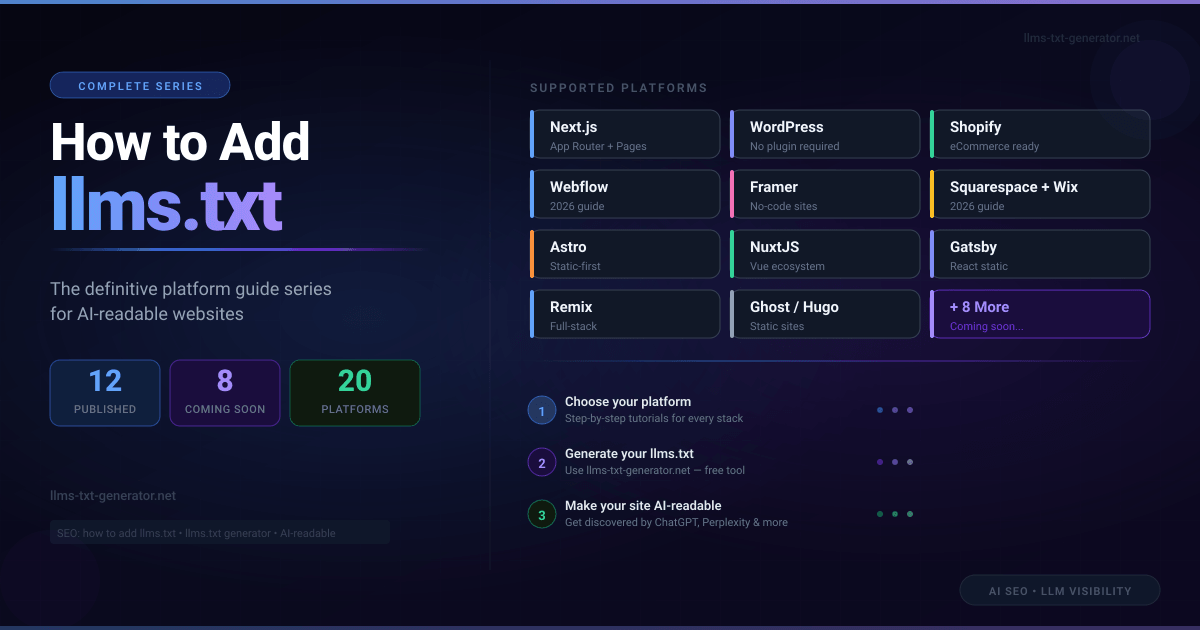
This guide covers every major website platform. Find yours below, follow the step-by-step instructions, and bookmark this page if you need to add a second site on a different tech stack.
Which Guide Do You Need?
| Your Platform | Recommended Approach | Difficulty |
|---|---|---|
| Next.js | Route handler or static file | Easy |
| Nuxt.js | Server route or public folder | Easy |
| Astro | Static file in /public |
Very easy |
| Gatsby | Static file in /static |
Very easy |
| Remix | Route file returning plain text | Easy |
| WordPress | Upload via File Manager or FTP (no plugin needed) | Easy |
| Webflow | GitHub Gist redirect or Cloudflare Worker | Easy |
| Shopify | Files CDN upload + URL Redirect mapping | Moderate |
| Framer | CMS text page or redirect to hosted text file | Easy |
| Ghost / Hugo / static sites | Place in root output directory or theme asset folder | Very easy |
| Squarespace / Wix | Wix Developer Mode or domain‑level redirects | Moderate |
| SaaS products | Structured API and doc references | Varies |
Step 0: Generate Your llms.txt File First
Before placing the file on your site, you need to create it. A valid llms.txt file contains your site name, an optional description, and a prioritized list of your most important pages — your top 10–20 URLs with one-line descriptions. Do not list your entire sitemap; AI crawlers prioritize curated guidance over exhaustive lists.
Use the free llms.txt generator to build your file automatically from your site URL. It takes about 60 seconds. Once generated, save the file as llms.txt (plain text) and follow your platform guide below to upload it.
Next.js — App Router and Pages Router
Next.js supports two approaches: a static file in the /public directory (zero configuration) or a dynamic route handler that generates the file at request time. The dynamic approach is better for large sites where the URL list changes frequently.
- Static: Place
llms.txtin/public/llms.txt— it will be served atyourdomain.com/llms.txtautomatically. - Dynamic (App Router): Create
app/llms.txt/route.tsand return aResponsewithcontent-type: text/plain. - Dynamic (Pages Router): Create
pages/api/llms.txt.tsand setres.setHeader('Content-Type', 'text/plain').
Full Next.js guide with code examples →
Nuxt.js
In Nuxt, place the file in the /public directory for a static approach, or use a server route for dynamic generation. The server route approach works well for Nuxt Content sites where pages are generated from markdown files.
- Static: Add
public/llms.txt— Nuxt serves it at the domain root automatically. - Dynamic: Create
server/routes/llms.txt.tsand return the content withsetResponseHeader(event, 'content-type', 'text/plain').
Full Nuxt.js guide with code examples →
Astro
Astro is the easiest framework for this task. Place your llms.txt file in the /public directory. Astro copies all files in /public to the root of your built site unchanged. No configuration needed.
For dynamically generated content (blog posts, docs), Astro also supports content endpoints — you can write an llms.txt.ts file in /src/pages/ that builds the URL list from your content collection at build time.
Full Astro guide with code examples →
Gatsby
In Gatsby, place the file in the /static directory. Gatsby copies everything in /static to the root of the built site. This is the simplest approach and requires no plugin or configuration change.
For dynamic generation based on your content graph, you can use the onPostBuild Gatsby Node API to generate the file during the build process.
Full Gatsby guide with code examples →
Remix
In Remix, create a route file at app/routes/llms[.txt].tsx that exports a loader function returning the file content as plain text. The bracket notation in the filename tells Remix to treat the dot as a literal character rather than a nested route separator.
Full Remix guide with code examples →
WordPress (No Plugin Required)
You do not need a plugin for WordPress. Upload your llms.txt file to the root of your WordPress installation — the same directory as wp-config.php — via your host's File Manager, FTP, or SFTP. Once uploaded, it will be accessible at yourdomain.com/llms.txt.
If you manage multiple WordPress sites or want automatic regeneration as you publish posts, a plugin-based approach is also covered in the full guide.
Webflow
Webflow's hosting does not support direct custom text file uploads to your site root. Instead, you can either create a 301 redirect in your Webflow settings pointing from /llms.txt to a hosted plain-text file (like a raw GitHub Gist), or proxy your traffic through Cloudflare Workers to serve the text directly from your root domain.
Full Webflow guide with setups →
Shopify
Shopify does not allow uploading custom files to the root domain. The easiest way to serve your file is to upload llms.txt to your Shopify Files CDN, and then set up a URL redirect inside your Shopify admin panel (under Navigation) mapping /llms.txt to the CDN file URL.
Full Shopify guide with redirect details →
Framer
In Framer, you can add llms.txt via the CMS or through custom code components. The simplest approach for most Framer sites is to use the custom code settings panel to redirect /llms.txt to a hosted plain-text file, or to use Framer's file hosting if your plan supports it.
Ghost, Hugo, and Other Static Sites
For Ghost, Hugo, Jekyll, Eleventy, and similar static site generators, place your llms.txt file in the directory that maps to your site's root output. For most static generators this is /static, /public, or /assets depending on your configuration. The file will be copied to the root of the built site unchanged.
For Ghost specifically, place the file via SFTP in your Ghost instance's root URL directory.
Full guide for Ghost, Hugo, and static sites →
Squarespace and Wix
Squarespace and Wix do not allow direct file uploads to the domain root. To add llms.txt, Wix users can enable Velo/Developer Mode to build a custom HTTP function, while Squarespace users must set up a custom domain-level redirect mapping /llms.txt to an externally hosted file.
Full Squarespace and Wix guide →
SaaS Products — Structuring for AI Discovery
SaaS documentation sites have different requirements than content blogs. Your llms.txt should prioritize your API reference, getting-started guides, and feature documentation — not your marketing pages. AI assistants answering questions about your product should be directed to pages that explain how it works, not pages that sell it.
Full guide for SaaS products →
Verify Your File Is Being Read
After uploading, verify your file is accessible at yourdomain.com/llms.txt by visiting the URL directly in a browser. You should see plain text content, not an HTML page.
To confirm AI crawlers are fetching it, check your server access logs for requests to /llms.txt from these user-agent strings:
GPTBot/1.0— ChatGPT's crawlerClaudeBot/0.1— Claude's crawlerPerplexityBot/1.0— Perplexity's crawler
Crawler visits typically begin within days of the file going live. For more detail on which AI platforms read llms.txt and how to interpret your logs, see which AI crawlers read llms.txt and how to verify your file is being crawled.
Common Mistakes to Avoid
- Wrong file location: The file must be at
yourdomain.com/llms.txt— not a subdirectory.yourdomain.com/blog/llms.txtwill not be read by crawlers. - HTML instead of plain text: The file must return
content-type: text/plain. If your platform serves it as HTML, crawlers will receive broken content. - Listing your entire sitemap: Include your 10–20 most important pages. Exhaustive lists are harder for crawlers to prioritize and dilute the signal.
- Empty or placeholder content: A file that exists but contains only boilerplate provides no value. Include real page descriptions.
- Forgetting to verify: Always confirm the file is accessible at the root URL before assuming it's live.
Frequently Asked Questions
What should I put in my llms.txt file?
A valid llms.txt includes: a site name as an H1, an optional short description, and a list of your most important pages — each as a Markdown link with a one-sentence description. Aim for 10–20 pages. Focus on pages that best represent your site's purpose: key product pages, pillar content, documentation, or guides. Use the free generator to build the initial version automatically.
Does llms.txt work for subdomains?
Each domain and subdomain needs its own llms.txt file. A file at yourdomain.com/llms.txt does not cover docs.yourdomain.com. If your documentation is on a subdomain, add a separate file there pointing to the documentation pages.
How often should I update the file?
Update your llms.txt whenever your site's most important pages change significantly — new pillar content published, old content removed, or major restructuring. A quarterly refresh is a reasonable default for most sites. The file itself is static, so there's no performance cost to keeping it current.
How is llms.txt different from sitemap.xml?
A sitemap.xml lists all pages on your site so search engine crawlers can discover them. llms.txt lists your most important pages with human-readable descriptions so AI crawlers can prioritize them. Sitemap.xml is for discovery completeness; llms.txt is for AI-oriented prioritization. Both are worth having.
Will llms.txt affect my Google rankings?
No. Google does not read llms.txt. It has no effect on Google Search rankings in either direction. It is specifically for AI search platforms: ChatGPT, Claude, and Perplexity, which have all documented their support for the standard.