You've built a Gatsby site with solid content. But AI crawlers — the engines powering ChatGPT, Perplexity, and Google AI Overviews — can't easily parse what your site is about from raw HTML alone. Most tutorials tell you to "just add a text file," then skip the part about how Gatsby's build pipeline handles static assets and say nothing about keeping the file current as your content grows.
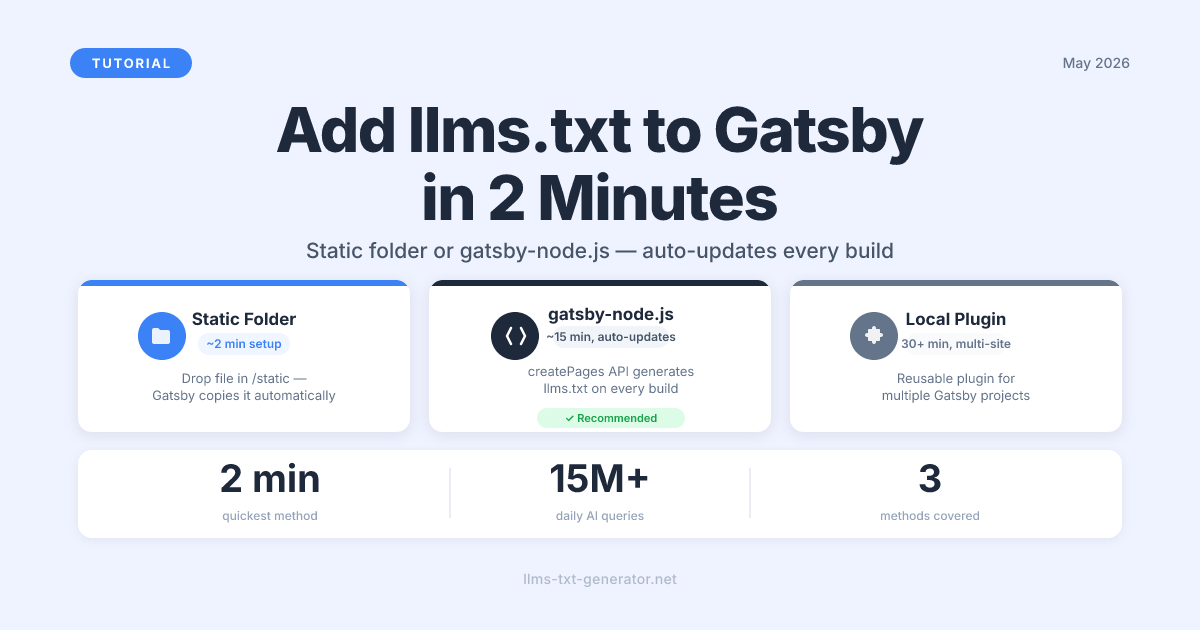
This guide covers two proven methods: the static folder approach (under 2 minutes, no code) and the gatsby-node.js approach (under 15 minutes, dynamically generated from your site's GraphQL data). You'll also see a method comparison table so you can pick the right option for your setup.
By the end, yourdomain.com/llms.txt will return a properly structured file — and AI crawlers will have a clear, machine-readable map of your content to cite, summarize, and surface in answers.
Why Gatsby Sites Need llms.txt in 2026
Perplexity AI now handles over 15 million queries per day. ChatGPT has more than 100 million weekly active users. Both use web crawlers that read structured text files to decide which content is worth citing in their answers.
Gatsby builds fast, SEO-friendly sites — but "SEO-friendly" in 2026 means more than clean HTML and good meta tags. AI crawlers look for signals that tell them: what does this site cover, which pages are authoritative, and how is the content structured? An llms.txt file answers all three questions in plain text, with no JavaScript execution required.
Without llms.txt, an AI crawler visiting your Gatsby site has to infer context from markup, link structure, and page titles alone. With it, crawlers get a structured document purpose-built for machine consumption. If you're new to the standard, the introduction to llms.txt and why it matters covers the spec and the use case in detail.
Method 1: The Static Folder (Quickest Setup)
Gatsby automatically copies everything in your /static directory to the root of the build output. This is the fastest way to add llms.txt — no build configuration changes, no plugins, no Node.js code.
Step-by-step
Navigate to the root of your Gatsby project.
Open the
/staticdirectory (create it if it doesn't exist).Create a new file named
llms.txtinside/static/.Add your site's content — see the content structure section below.
Run
gatsby build. The file will appear at/public/llms.txt.Deploy as normal. The file is now live at
yourdomain.com/llms.txt.
Limitations to know
Manual updates only. When you add new pages, you have to edit the file by hand.
No dynamic data. The file is whatever you wrote — it doesn't pull from your content model.
Works in all Gatsby versions. No compatibility issues with Gatsby v4, v5, or beyond.
Use the static folder method if your site has a stable structure — a portfolio, a documentation site with infrequent changes, or a landing page with a small number of pages. If you run a blog or a content site that publishes regularly, Method 2 scales better.
Method 2: Generate llms.txt in gatsby-node.js
Gatsby exposes a lifecycle hook called onPostBuild that runs after all pages have been generated. You can use it to write llms.txt directly to the /public directory using data from GraphQL — so the file auto-updates on every build with no manual effort.
Basic setup
Open (or create) gatsby-node.js in your project root and add the following:
const fs = require('fs');
const path = require('path');

exports.onPostBuild = async ({ graphql }) => {
  // Query your pages — adjust to match your content model
  const result = await graphql(`
    {
      allMdx {
        nodes {
          frontmatter {
            title
          }
          fields {
            slug
          }
        }
      }
    }
  `);

  const pages = result.data.allMdx.nodes;

  let content = `# Your Site Name\n\n`;
  content += `> A brief description of what your site covers and who it's for.\n\n`;
  content += `## Blog Posts\n\n`;

  pages.forEach((page) => {
    const title = page.frontmatter?.title || 'Untitled';
    const slug = page.fields?.slug || '';
    content += `- [${title}](https://yoursite.com${slug})\n`;
  });

  fs.writeFileSync(
    path.join(__dirname, 'public', 'llms.txt'),
    content
  );

  console.log(`llms.txt generated with ${pages.length} entries.`);
};
After running gatsby build, check /public/llms.txt. Every new post you publish will appear in the file automatically on the next build.
Querying multiple content types
Most Gatsby sites have more than one content type — blog posts, docs pages, product pages. Extend the query to include all of them, then group the links by section in your output:
const result = await graphql(`
  {
    blogPosts: allMdx(filter: { fileAbsolutePath: { regex: "/blog/" } }) {
      nodes {
        frontmatter { title }
        fields { slug }
      }
    }
    docPages: allMdx(filter: { fileAbsolutePath: { regex: "/docs/" } }) {
      nodes {
        frontmatter { title }
        fields { slug }
      }
    }
  }
`);

let content = `# Your Site Name\n\n`;
content += `> Description of your site.\n\n`;
content += `## Blog Posts\n\n`;
result.data.blogPosts.nodes.forEach((p) => {
  const title = p.frontmatter?.title || 'Untitled';
  const slug = p.fields?.slug || '';
  content += `- [${title}](https://yoursite.com${slug})\n`;
});
content += `\n## Documentation\n\n`;
result.data.docPages.nodes.forEach((p) => {
  const title = p.frontmatter?.title || 'Untitled';
  const slug = p.fields?.slug || '';
  content += `- [${title}](https://yoursite.com${slug})\n`;
});
AI crawlers understand hierarchical structure and use section groupings to assign topical weight to your content. Grouping by content type is a significant signal for AI discoverability.
What to Put in Your Gatsby llms.txt File
The llms.txt best practices guide covers the full spec. Here's the Gatsby-specific summary of the required fields:
H1 site name:
# Your Site Name— always the first lineBlockquote description:
> One or two sentences describing your site's purpose and audienceSections by content type: Use
## Blog,## Docs,## Productsas section headersMarkdown links — one per line:
- [Title](https://yoursite.com/slug)Optional
llms-full.txtlink: If you have extended content summaries, link tollms-full.txtat the bottom
A complete example:
# Gatsby Developer Blog

> A technical blog covering Gatsby, React, and modern web performance.
> Written for frontend developers who want practical, opinionated guides.

## Blog Posts

- [How to Add llms.txt to Gatsby](https://yoursite.com/blog/gatsby-llms-txt)
- [Gatsby Image Optimization in 2026](https://yoursite.com/blog/gatsby-image-2026)

## Documentation

- [Getting Started](https://yoursite.com/docs/getting-started)
- [Configuration Reference](https://yoursite.com/docs/config)
Not sure what to write? Generate your free llms.txt file to get a properly structured starting template — then paste it into your /static/llms.txt or use it as the base string in your gatsby-node.js output.
Method Comparison: Which One to Use
Pick the method that fits your site's publishing cadence and complexity:
Method | Setup time | Dynamic? | Auto-updates on build? | Best for |
|---|---|---|---|---|
Static folder ( | ~2 min | No | Manual edits only | Portfolios, landing pages, stable docs |
| ~15 min | Yes | Yes — every | Blogs, content sites, multi-type sites |
Local Gatsby plugin ( | 30+ min | Yes | Yes — every build | Multi-site setups, shared config across repos |
Recommendation: Start with the static folder method. If your site has more than 20 pages or publishes more than once a week, migrate to the gatsby-node.js method — the maintenance overhead of manual updates compounds quickly.
Common Gatsby llms.txt Mistakes
Wrong folder: Putting
llms.txtin/srcinstead of/static. Gatsby doesn't serve files from/src— only from/static` or the build output.Missing build step: After editing
/static/llms.txtlocally, you must rungatsby buildand deploy. The dev server (gatsby develop) serves static files, but your production host needs a fresh build.Hardcoded URLs in gatsby-node.js: If you change your domain or deploy to a staging environment, hardcoded URLs break. Use a
GATSBY_SITE_URLenvironment variable instead.Skipping the description blockquote: The
>description is the highest-value field in yourllms.txt. AI crawlers use it as the primary context signal for your entire site. Don't skip it.
Verify Your llms.txt Is Working
After deploying, confirm the file is live and returning the right content:
Visit
https://yourdomain.com/llms.txtdirectly in a browser.Confirm the HTTP status is 200 OK, not 404.
Check that the
Content-Typeheader istext/plain.Verify the content renders as plain text (no HTML tags, no JavaScript output).
For a deeper check — confirming that AI crawlers have actually visited and indexed your file — see the full guide on how to verify your llms.txt is being crawled by AI.
Conclusion
Adding llms.txt to a Gatsby site takes between 2 and 15 minutes depending on your method. The static folder approach is the fastest starting point; gatsby-node.js is the right long-term solution for any site that publishes content regularly and wants the file to stay accurate without manual effort.
Ready to generate a well-structured llms.txt file for your Gatsby site? Generate your free llms.txt file and have a ready-to-use template in under a minute.
Frequently Asked Questions
Does llms.txt work with Gatsby Cloud and Netlify?
Yes. Both Gatsby Cloud and Netlify serve files from the /public build output directory. Whether you use the static folder method or gatsby-node.js, the file will be available at yourdomain.com/llms.txt after a standard build and deploy. No additional configuration is needed on either platform.
Will generating llms.txt slow down my Gatsby build?
No. Gatsby copies static files with negligible overhead. A plain text file adds essentially zero build time. The gatsby-node.js method adds one GraphQL query and a synchronous file write — also negligible for sites with hundreds of pages. You won't notice a difference in your build times.
Should I add any llms.txt configuration to gatsby-config.js?
No. The static folder method requires no configuration at all — Gatsby handles /static automatically. For the gatsby-node.js method, all the code lives in gatsby-node.js itself. Nothing goes in gatsby-config.js for this use case.
What's the difference between llms.txt and robots.txt?
They serve different audiences. robots.txt tells web crawlers (Googlebot, Bingbot) which pages to index. llms.txt tells AI language models and AI-powered crawlers how to understand your site's content and structure. You need both — they complement each other and there is no overlap in their function.
What if my Gatsby site uses a headless CMS like Contentful or Sanity?
The gatsby-node.js method works regardless of your data source. Whether you pull content from Contentful, Sanity, DatoCMS, or local MDX files, you query your data through Gatsby's GraphQL layer and generate a dynamic llms.txt from the results. The CMS or data source doesn't affect the approach — the onPostBuild hook runs after all data has been fetched and all pages built.
Do I need to submit my llms.txt to AI crawlers?
No manual submission is required. AI crawlers discover llms.txt by visiting yourdomain.com/llms.txt directly. Most major AI crawlers check this URL automatically when they encounter a domain. Your job is to make sure the file exists, returns a 200 OK response, and contains accurate content.
How often should I update my llms.txt?
If you use the gatsby-node.js method, the file updates automatically on every build — no manual effort required. For the static folder method, update it whenever you add a new section, page type, or topic cluster to your site. A slightly stale llms.txt is significantly better than none, but an accurate one gives AI crawlers stronger and more trustworthy context signals.
My Gatsby site is a single-page app. Do I still need llms.txt?
Yes — arguably more than a traditional multi-page site. AI crawlers often struggle to execute JavaScript and render client-side content. A static llms.txt file gives them a reliable, JavaScript-free entry point to understand your site's structure and content without depending on client-side rendering. It's one of the highest-ROI additions for SPA sites.
Can I have both llms.txt and llms-full.txt on my Gatsby site?
Yes, and it's recommended for content-heavy sites. llms.txt should contain a concise index of your key pages — titles and URLs. llms-full.txt can include longer descriptions, summaries, or full content excerpts for AI crawlers that want extended context. Link to llms-full.txt from within your llms.txt using a standard Markdown link. Use the same static folder or gatsby-node.js method to generate both files.
Is there a gatsby-plugin-llms-txt package I can install?
Not an official one as of May 2026, but the pattern is straightforward to implement yourself — and the gatsby-node.js approach described in this guide gives you full control over the output format. If you want a reusable solution across multiple Gatsby projects, create a local plugin in your /plugins directory following the same onPostBuild pattern. The gatsby-plugin-robots-txt plugin is a good reference for the structure.