You've deployed your Next.js app and want to add llms.txt so that AI models like ChatGPT, Claude, and Perplexity can discover and cite your content accurately. The guides you find are either too vague (\"just create a text file\") or assume you want a full automated pipeline before you've verified the basics work.
This tutorial covers both approaches in full: the static method that takes under 2 minutes, and a dynamic route.ts handler that auto-generates your llms.txt from your content on every build. Both work with Next.js 13, 14, and 15 — and we cover App Router and Pages Router separately.
By the end, your Next.js app will serve a properly structured llms.txt file at yourdomain.com/llms.txt, readable by every major AI crawler.
What Is llms.txt? (Quick Recap)
An llms.txt file is a short Markdown document placed at your domain root that tells large language models what your site covers and which pages to prioritize. It is intentionally minimal: an H1 title, a blockquote site description, and organized sections with links to your key pages.
Unlike robots.txt (which restricts crawlers) and sitemap.xml (which lists every URL), llms.txt is written for AI comprehension — clean Markdown with no HTML noise. For background on the standard, see our complete guide to what llms.txt is and why your site needs one. This tutorial focuses entirely on Next.js implementation.
Two Methods, One Goal
There are two main ways to serve llms.txt from a Next.js app. The choice depends on whether your file needs to update automatically when you publish new content.
Method | Setup Time | Auto-updates? | Best For |
|---|---|---|---|
Static file ( | ~2 min | No (manual) | Marketing sites, stable content |
Dynamic route ( | ~20 min | Yes (on each deploy) | Blogs, docs, content-heavy apps |
Start with the static method. It works for most sites and stays accurate as long as you maintain it. A well-curated manual file outperforms an auto-generated one that lists every page indiscriminately. Migrate to the dynamic route only when you have a concrete reason — typically a high-volume blog where manual updates are a meaningful burden.
Method 1: Static File in /public
Next.js automatically serves any file in the public directory at the domain root. A file at public/llms.txt is immediately accessible at yourdomain.com/llms.txt with no additional configuration.
Step 1: Generate Your File Content
You can write the llms.txt file by hand, but the faster path is to generate your free llms.txt file using the generator. It crawls your site, identifies your key pages, and outputs a correctly structured Markdown file.
Enter your Next.js site's URL into the generator.
Review the generated title, description, and page list.
Edit any sections that don't accurately reflect your site.
Download the file as
llms.txt.
Step 2: Add the File to Your Project
Place the downloaded file at:
your-nextjs-app/public/llms.txt
Commit it to version control and deploy. Next.js serves it at /llms.txt automatically — no config changes, no API routes, no extra build steps required.
Step 3: Verify It Works
Run
next devand visithttp://localhost:3000/llms.txt.You should see plain Markdown text — no HTML page wrapper.
After deploying, open the Network tab in DevTools and confirm the
Content-Typeresponse header istext/plain.
That is all that's required. Update the file manually when you add major new sections or significantly change your site's structure. A monthly review is a sensible default.
Method 2: Dynamic Route Handler (App Router)
If you publish new content regularly, the App Router's route handlers let you generate llms.txt dynamically so it reflects your current content without manual updates.
Creating the Route File
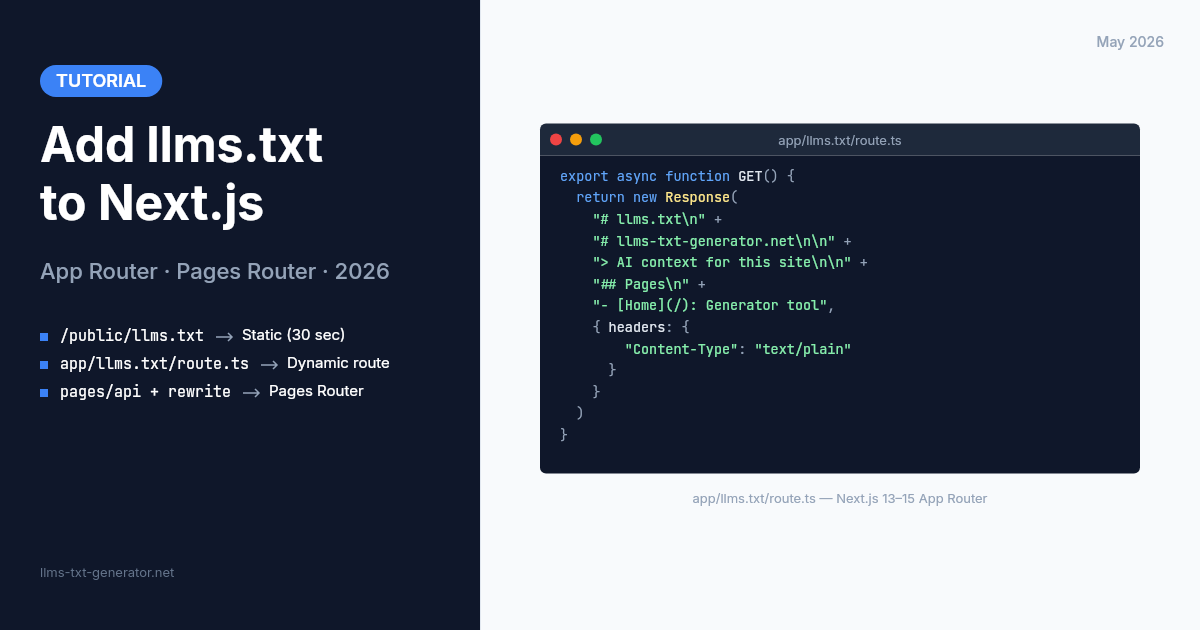
Create a new file at app/llms.txt/route.ts (or route.js for JavaScript projects). This requires Next.js 13.2 or later. The route returns a plain-text response with your llms.txt content:
Set the
Content-Typeheader totext/plain; charset=utf-8explicitly — some crawlers are strict about MIME types.Return a standard
Responseobject for compatibility across deployment targets including Vercel Edge.Build the content string by reading from your file system, CMS, or database inside the handler.
The base structure:
// app/llms.txt/route.tsexport async function GET() { const content = await buildLlmsTxtContent(); return new Response(content, { headers: { 'Content-Type': 'text/plain; charset=utf-8' }, });}
Building the Content Function
The buildLlmsTxtContent function is where your implementation varies. Common patterns:
MDX or file-based blog: Use
fs.readdirto scan your content directory and list each post with its title and URL under an## Articlessection.Headless CMS: Fetch published pages from your CMS API and format them as Markdown links under relevant section headings.
Curated static list: Hard-code your most important pages in the function body. For apps without a defined content inventory, this is the most reliable option and produces the best results.
The output must follow the llms.txt Markdown format: an H1 title, a > blockquote description, then H2 sections with Markdown link lists. Use the generator to produce your initial content structure, then adapt the output for dynamic generation.
Caching the Route
For most sites, regenerating at deploy time is the right default. Add this export to build statically at deployment rather than on every request:
export const dynamic = 'force-static';
For high-frequency publishing, use ISR instead: export const revalidate = 86400 regenerates every 24 hours without a full redeploy. AI crawlers index periodically, not in real-time, so daily regeneration is more than sufficient.
Method 3: Pages Router Projects
Pages Router projects can serve llms.txt through an API route at pages/api/llms.txt.ts, but this creates the route at /api/llms.txt rather than /llms.txt. To serve at the canonical path, add a rewrite to next.config.js:
rewrites: async () => [{ source: '/llms.txt', destination: '/api/llms.txt' }]
For most Pages Router projects, the simplest approach is still Method 1 — a static file in /public updated manually. The API route plus rewrite adds complexity without a practical benefit unless you're running a high-volume publishing operation that makes manual updates unsustainable.
Testing Your llms.txt
Before deploying, verify the file works correctly in local development:
Run
next devand openhttp://localhost:3000/llms.txtin your browser.Confirm you see plain Markdown text — no HTML wrapper, no page chrome.
Open the Network tab in DevTools, reload, click the
llms.txtrequest, and verify theContent-Typeheader istext/plain.After deploying, ask Claude or Perplexity: \"What does [yourdomain.com]/llms.txt say?\" A complete, accurate response confirms the crawler found and read your file.
Conclusion
Adding llms.txt to a Next.js app takes under 5 minutes with the static file method — and under 30 minutes if you build the dynamic route handler. Either approach puts your site in front of AI crawlers from ChatGPT, Claude, and Perplexity that are asked constantly to retrieve and cite information about specific products, tools, and businesses.
Start simple: generate your free llms.txt file here, drop it into public/llms.txt, commit, and deploy. You can always build the dynamic route later when you have a clear reason to automate.
Frequently Asked Questions
Does the /public method work with Next.js on Vercel?
Yes. Vercel serves the public directory at the domain root by default. Your file will be available at yourdomain.com/llms.txt without any platform-specific configuration. The same applies to AWS Amplify, Netlify, and self-hosted Docker deployments.
What content type should the llms.txt response return?
The Content-Type header should be text/plain; charset=utf-8. The static file method in Next.js sets this automatically. For dynamic routes, you must set it explicitly in the response headers — some AI crawlers enforce strict MIME type matching and may skip files with incorrect content types.
Should I list every page on my site in llms.txt?
No. A curated, focused list performs better than an exhaustive index. Include your home page, core feature or service pages, and your best or most representative content. A focused 15-to-30-item file is far easier for AI models to reason about than a 500-URL dump where every page has equal weight.
Does Google read llms.txt?
No. Google has stated it does not support the llms.txt standard. However, ChatGPT (GPTBot), Claude (ClaudeBot), and Perplexity (PerplexityBot) all crawl it. For AI-driven search and citation outside Google, llms.txt has measurable impact. See our complete breakdown of which AI crawlers read llms.txt for the full evidence and user-agent reference.
Will this work with Next.js 13, 14, or 15?
Yes. The /public directory method works with all versions of Next.js. The App Router dynamic route method (app/llms.txt/route.ts) requires Next.js 13.2 or later. Next.js 14 and 15 support this natively, and the route handler syntax is identical across all three versions.
What format must an llms.txt file follow?
The format is simple Markdown: an H1 title (your site name), a > blockquote with a one-paragraph site description, then H2 sections (e.g., ## Documentation, ## Blog Posts) each containing a list of Markdown links to important pages. There is no formal schema enforcement — AI crawlers parse it as natural Markdown — but consistency with this structure gives the best results across platforms.
Can I have both llms.txt and llms-full.txt?
Yes. The specification allows for an llms-full.txt variant that includes the full content of your key pages — not just links. This is useful for documentation sites where AI assistants need the actual content to answer questions. For most Next.js apps, a well-structured llms.txt with accurate links is sufficient to start.
How often should I update my static llms.txt?
Update it whenever your site's structure changes significantly — new major sections, key pages added or removed, or a rebrand. A monthly review is a sensible default for stable sites. If you switch to the dynamic route handler that rebuilds on deploy, you don't need to think about this — it stays current automatically.
Do I need to register or submit my llms.txt anywhere?
No registration or submission is required. AI crawlers discover your llms.txt by checking yourdomain.com/llms.txt during their standard crawl cycles. Simply having the file at the correct path is sufficient. There is no submission process analogous to Google Search Console's sitemap submission feature.
What if my Next.js app is deployed at a subpath?
The llms.txt standard requires the file at the domain root: yourdomain.com/llms.txt, not yourdomain.com/app/llms.txt. If your Next.js app is mounted at a subpath, serve the file from the root domain via your reverse proxy (nginx or Caddy), or host a minimal static file at the root that points crawlers to your actual content.