If you're building on Hugo, Ghost, Netlify, or GitHub Pages, you've probably noticed that most llms.txt guides are written for WordPress. They assume you have a file manager, a plugin dashboard, or a CMS with media uploads.
You don't. And honestly, you don't need any of that.
Static site generators and most static hosts are easier to work with for llms.txt, not harder. You're already dealing with files and build output. This guide gives you the right method for each platform — most take under 5 minutes.
Which Platforms This Guide Covers
Before you start, identify which category you're in:
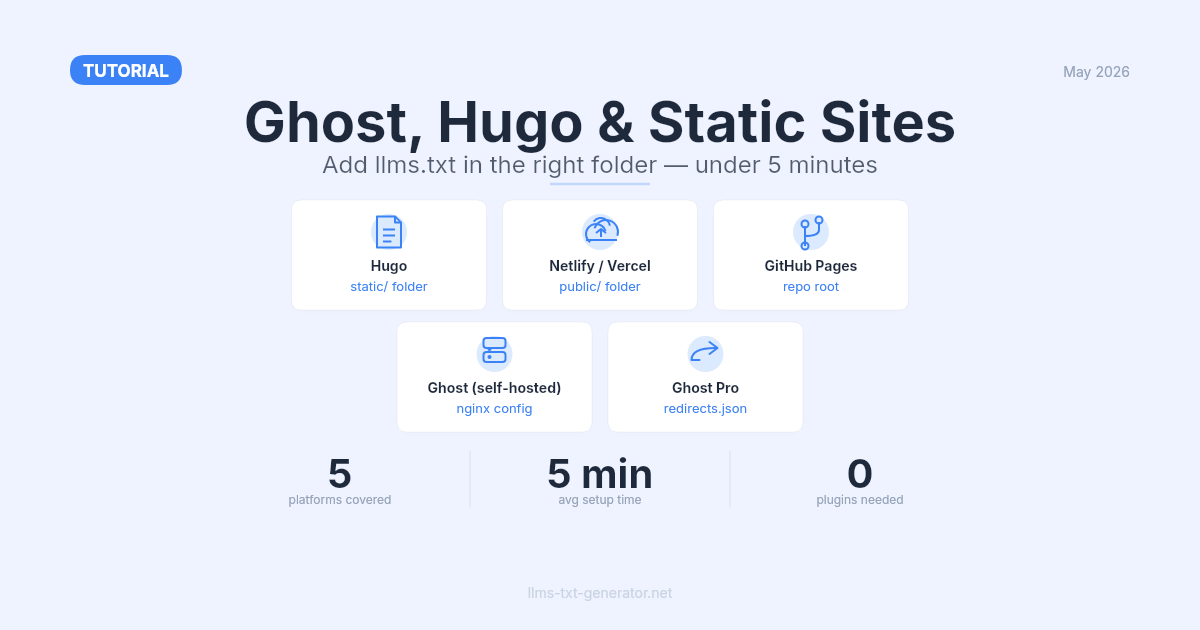
Platform | Method | Time | Server access needed? |
|---|---|---|---|
Hugo | Drop in | 2 min | No |
Netlify / Vercel / Cloudflare Pages | Drop in build root or | 2 min | No |
GitHub Pages | File in repo root | 2 min | No |
Ghost (self-hosted) | Nginx static location block | 10 min | Yes (nginx) |
Ghost Pro (managed) | Host externally + redirects.json | 10 min | No |
Method 1: Hugo
Hugo is the simplest case. Anything in the static/ folder gets copied verbatim to your build output root. No configuration, no template, no route.
Steps
Open your Hugo project in your editor.
Create a new file at
static/llms.txt.Use the generator to build your llms.txt content, then paste it into the file.
Run
hugoto build your site.Your file is now served at
yourdomain.com/llms.txt.
That's it. Hugo copies the file exactly as-is — no transformation, no processing.
One thing to know: if you use Hugo's output configuration to serve multiple formats, files in static/ bypass that system entirely. They land in the build root regardless of your output settings.
Want it to update automatically?
The static file method works great if you update llms.txt manually every few months. If you want it to auto-include new pages every build, create a template at layouts/llms.txt/single.html with the text/plain output format — that's a more advanced setup, but doable if your content changes frequently.
Method 2: Netlify, Vercel, Cloudflare Pages, and GitHub Pages
All four static hosts use the same principle: files in your build output root are served at the domain root. The only question is which folder your build tool treats as the root.
Where to put the file by platform
Netlify: Put
llms.txtin your site'spublic/folder (or wherever your build outputs to). Netlify serves it at/llms.txtautomatically.Vercel: Put
llms.txtin your project'spublic/folder. Vercel serves allpublic/files at the root path — no extra config.Cloudflare Pages: Same as Netlify. Drop the file in the root of your build output directory.
GitHub Pages: Put
llms.txtin the root of your repo (or/docsif that's your GitHub Pages source). GitHub Pages serves it directly.
Using a framework on top of these hosts?
Quick reference for common frameworks:
Astro:
public/llms.txtSvelteKit:
static/llms.txtEleventy: Drop it in your input directory alongside your content — it passes through to output unchanged.
Next.js on Vercel:
public/llms.txt— see the Next.js guide if you want a dynamic route instead.
If you're unsure which folder is your build output, check your build command's output in the Netlify/Vercel/Cloudflare dashboard — it shows exactly where built files end up.
Method 3: Ghost (Self-Hosted)
Self-hosted Ghost runs on Node.js behind a reverse proxy — typically nginx. Ghost itself doesn't serve arbitrary files at the domain root, but nginx can intercept the request before it reaches Ghost.
Step 1 — Create the file
SSH into your server and create the file somewhere nginx can read it:
sudo nano /var/www/html/llms.txtPaste your llms.txt content and save. The exact path doesn't matter — you'll reference it in nginx.
Step 2 — Add an nginx location block
Edit your nginx config for the Ghost site:
sudo nano /etc/nginx/sites-available/yourdomain.comInside the server block, add this location block before the main Ghost proxy block:
location = /llms.txt { alias /var/www/html/llms.txt; default_type text/plain; add_header Content-Type "text/plain; charset=utf-8"; }The location = exact match tells nginx to only match this precise path — not any URL starting with /llms.txt.
Step 3 — Test and reload
sudo nginx -t && sudo systemctl reload nginxVisit yourdomain.com/llms.txt — you should see the plain text content.
Method 4: Ghost Pro (Managed Hosting)
Ghost Pro is Ghost's managed hosting service. You don't get server access or nginx config — the file system is locked down.
The workaround: host your llms.txt file publicly somewhere else, then configure Ghost's redirect system to point /llms.txt at it.
Step 1 — Host your llms.txt externally
A few good options:
GitHub repo: Create a public repo, add your
llms.txt, and use the raw URL:https://raw.githubusercontent.com/youruser/yourrepo/main/llms.txtGitHub Gist: Create a public Gist, paste your content, click Raw. The URL stays stable as long as you don't delete the Gist.
Cloudflare Pages: Create a minimal site just to host the file. Free tier is more than enough.
Step 2 — Create a redirects.json file
Ghost Pro supports custom redirects via a redirects.json file uploaded through the admin. Create it with this structure:
[ { "from": "/llms.txt", "to": "https://raw.githubusercontent.com/youruser/yourrepo/main/llms.txt", "permanent": true } ]Replace the to URL with your actual hosted file URL.
Step 3 — Upload to Ghost admin
Go to Ghost Admin → Settings → Labs.
Find the Redirects section and upload your
redirects.jsonfile.Ghost applies the redirect immediately — no restart needed.
One thing to know: AI crawlers including GPTBot and ClaudeBot follow 301 permanent redirects. A redirect from /llms.txt to your hosted file works correctly — crawlers will see your file content associated with your domain.
What to Put in Your llms.txt
Regardless of which method you used, the content of your file matters as much as where you put it.
The minimum viable structure:
An
# H1 titlethat names your siteA
> blockquotesummary — 1–2 sentences describing what your site doesSections (
## H2) with your most important page URLs — not every page, just the ones that represent your content well
Use the free generator to build your llms.txt file — it handles the correct format, section structure, and lets you add or remove URLs before downloading. For detailed guidance on what to include and what to leave out, see the llms.txt best practices guide.
Verifying the File Is Live
After setting up, run two quick checks:
Browser check: Visit
yourdomain.com/llms.txt. You should see plain text — not an HTML page, not a download prompt, not a 404.Content-Type check: Run
curl -I yourdomain.com/llms.txtand look at theContent-Typeheader. It should betext/plain. Some hosts default toapplication/octet-streamfor.txtfiles — technically valid, buttext/plainis cleaner.
If you want to confirm that AI crawlers are actually reading it — not just that the file is accessible — check the guide on verifying llms.txt crawls using server logs and direct LLM queries.
Conclusion
Static site generators and static hosts are genuinely the easiest platforms for llms.txt. Hugo, Netlify, Vercel, Cloudflare Pages, and GitHub Pages all follow the same pattern: put the file in the right folder and the platform handles the rest. Ghost adds one extra step, but it's straightforward once you know where to look.
Start by generating your llms.txt content, then follow the method for your platform above. The whole setup takes under 10 minutes.
Frequently Asked Questions
Does Hugo have a built-in way to serve llms.txt?
Not specifically — Hugo doesn't have llms.txt support built in. But the static/ folder is Hugo's general mechanism for serving any file verbatim from the domain root. Drop llms.txt there and it's served automatically after the next build.
Can I generate llms.txt dynamically in Hugo so it updates with each build?
Yes. Create a template at layouts/llms.txt/single.html with the output format configured for text/plain, then add a content file that triggers it. The static file method is simpler for most sites; the dynamic method is better if your content changes frequently and you want the file to stay in sync automatically.
Does Ghost Pro support serving files directly at the domain root?
Not without server access, which Ghost Pro doesn't provide. The redirects.json method is the supported workaround — you host the file externally and Ghost's redirect system points /llms.txt at it. AI crawlers that follow 301 redirects (including GPTBot and ClaudeBot) handle this correctly.
Will a 301 redirect from /llms.txt to a GitHub raw URL cause any issues?
No. A permanent redirect is semantically correct — it tells the crawler "the canonical content at this path lives here." Both GPTBot and ClaudeBot follow redirects. The only minor downside is a slight latency from the extra hop, but this doesn't affect whether your llms.txt gets read.
I'm on Netlify. Do I need to configure netlify.toml to serve the file?
No. Netlify serves files from your build output directory without any config. If your llms.txt is in the output root, Netlify picks it up automatically. The only time you'd add a netlify.toml entry is if you want to force a specific Content-Type header — which is rarely necessary.
What about Astro's content collections — can those generate llms.txt?
Content collections are designed for HTML page rendering, not arbitrary file endpoints. For a static llms.txt, just put the file in Astro's public/ folder. If you want a dynamic list that pulls from your content collections, write a custom Astro endpoint that returns plain text at the /llms.txt path using export async function GET().
Does the file need to be named exactly llms.txt?
Yes. The llms.txt specification requires the file at /llms.txt at the domain root. AI crawlers look for this exact path. Files named llms-txt.txt, llms.md, or hosted at /ai/llms.txt will not be recognized as valid llms.txt files.
I'm self-hosting Ghost on Apache instead of nginx. What do I do?
Add an Alias directive in your Apache virtual host config: Alias /llms.txt /path/to/llms.txt. Then add a <Files "llms.txt"> block with ForceType text/plain to set the correct content type. If you're managing a simple setup, the .htaccess approach in the site's document root also works.
Do I need to update llms.txt when I publish new content?
For static file methods (Hugo, Netlify, GitHub Pages), you'll need to update the file manually or incorporate it into your build. Hugo users who want auto-updating should use the dynamic template approach. For Ghost Pro, update the externally hosted file — if you're on GitHub, just edit the file in your repo and the raw URL stays the same.
What if my Cloudflare Pages build isn't serving my llms.txt?
Check your build output directory setting in the Cloudflare Pages dashboard. If your build outputs to a subfolder like dist/ or out/, make sure llms.txt is inside that folder — not in the project root. Cloudflare Pages only serves files from the configured output directory, so the file needs to be in the right place after the build runs.