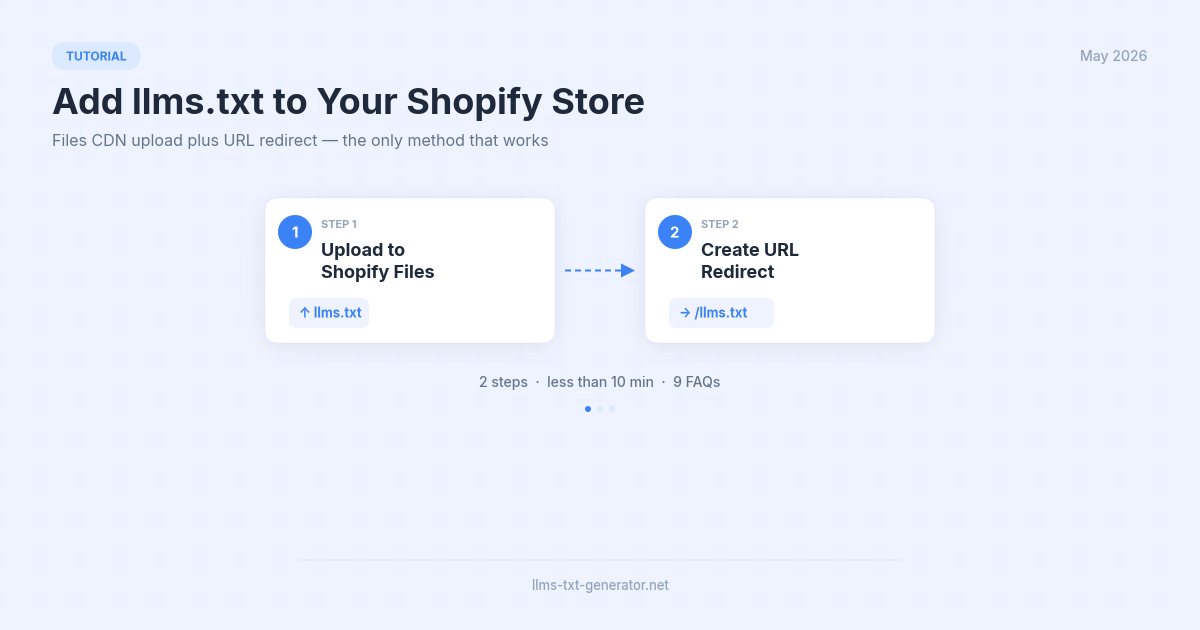
If you've ever tried to add a llms.txt file to a Shopify store by uploading it to the domain root — you've already hit the wall. Shopify doesn't let you add files to your domain root directly. Every guide that says "just upload the file" assumes you're on WordPress, a VPS, or something with direct file system access. On Shopify, that's not how it works.
The good news: there's a clean workaround that takes two steps and under 10 minutes — no app, no code, no theme editing. You upload the file to Shopify Files (which puts it on Shopify's CDN), copy the CDN URL, then create a URL redirect so yourdomain.com/llms.txt points to it. AI crawlers follow redirects, so from their perspective the file is right where it should be.
By the end of this guide, your Shopify store will have a working llms.txt file discoverable by GPTBot, ClaudeBot, PerplexityBot, and every other major AI crawler.
Why Your Shopify Store Needs llms.txt
llms.txt is a plain-text file that tells AI language models what your site does and which pages matter. For e-commerce, this matters more than most store owners realize: when a shopper asks ChatGPT or Perplexity "where can I buy [product]?", those tools are increasingly pulling structured information from llms.txt files to form their answers.
Without llms.txt, AI models either skip your store or guess at your inventory based on whatever pages they've crawled. With a well-structured llms.txt, you control the signal — you tell them your store name, what you sell, your top collections, and where to send shoppers. For a deeper look at the standard and why it matters, see What Is llms.txt and Why Your Website Needs One.
What You'll Need Before You Start
Access to your Shopify admin panel
Your
llms.txtfile content — generate your free llms.txt with the generator before starting. It creates the right format automatically and takes about 60 seconds.Your store's main collection URLs and policy page URLs (for the e-commerce content section below)
Have the file content ready before you start the steps below. The whole process is faster if you're not writing the file and uploading it at the same time.
Step 1: Upload Your llms.txt to Shopify Files
Shopify's Files section lets you upload any file to their CDN. Every uploaded file gets a permanent CDN URL — and that URL is what you'll redirect to in Step 2.
How to Upload
In your Shopify admin, go to Content → Files
Click Upload files in the top right
Upload your
llms.txtfileOnce uploaded, click the file to open it — or look for the copy URL icon next to the filename
Copy the full CDN URL — it will look something like:
https://cdn.shopify.com/s/files/1/0000/0000/0000/files/llms.txt
Important: Make sure the file you're uploading has the plain text content in it — not HTML, not JSON. If you generated it with the tool, it's already in the right format. Just save it with the filename llms.txt before uploading.
Step 2: Create the URL Redirect
Now you'll tell Shopify to redirect any request for /llms.txt at your domain to the CDN URL from Step 1.
How to Create the Redirect
In your Shopify admin, go to Online Store → Navigation
Scroll down and click View URL redirects (or go directly to Online Store → URL Redirects)
Click Create URL redirect
In the Redirect from field, enter:
/llms.txtIn the Redirect to field, paste the full CDN URL you copied in Step 1
Click Save redirect
That's it. Shopify creates a 301 permanent redirect — the same type search engines and AI crawlers treat as a canonical location. When a crawler requests yourdomain.com/llms.txt, Shopify redirects them to the CDN file automatically.
Step 3: Verify It's Working
Open a new browser tab and visit https://yourdomain.com/llms.txt. You should see the plain text content of your file — either served directly or after a brief redirect. If you see a Shopify 404 page, double-check that the redirect from field is exactly /llms.txt (with the leading slash) and that the CDN URL in the redirect to field is correct.
For a thorough verification — including checking that AI crawlers are actually fetching the file — see How to Verify Your llms.txt Is Being Crawled by AI.
What to Put in Your Shopify llms.txt
An e-commerce llms.txt is structured differently from a blog or docs site. AI models need to understand what you sell and where to find it — not just your homepage and blog index.
Section | What to Include | Priority |
|---|---|---|
Store description | One sentence: what you sell, who your customers are | Required |
Top collections | Your 3–5 main product categories with short descriptions | Required |
Bestsellers | 2–5 specific product URLs that drive the most revenue | High |
Store policies | Shipping, returns, and FAQ pages — shoppers ask about these | High |
About / Contact | Builds trust; AI models use this for store summaries | Medium |
Blog | Blog index if you publish regularly — optional | Optional |
A basic Shopify llms.txt looks like this:
# Your Store Name

> An online store selling [what you sell] for [your customers].

## Collections

- [All Products](/collections/all): Full product catalog
- [Bestsellers](/collections/bestsellers): Top-selling products
- [New Arrivals](/collections/new): Latest additions

## Store Info

- [About Us](/pages/about): Our story and mission
- [Shipping Policy](/policies/shipping-policy): Delivery times and rates
- [Return Policy](/policies/refund-policy): Returns and exchanges
- [FAQ](/pages/faq): Common customer questions
Don't list every product URL — AI models don't need a product feed, they need context. Focus on collections and the handful of products that define your store. If you're not sure what to include, the generator creates a tailored starting point from your store URL.
Updating Your llms.txt When Your Store Changes
The CDN redirect approach has one trade-off: when you need to update the file, you upload a new version to Shopify Files and update the redirect to point to the new CDN URL. It's a two-minute process — just repeat Steps 1 and 2 whenever your main collections or store structure changes.
Set a reminder to review the file monthly — especially after launching new collections, changing your policies, or running major promotions. A stale llms.txt that points to discontinued products or outdated policies is worse than no file at all.
Conclusion
Adding llms.txt to Shopify takes about 10 minutes. The only unusual part is the CDN workaround — once you understand that Shopify routes everything through its CDN and supports URL redirects, the process is straightforward.
Upload the file, copy the CDN URL, create the redirect. That's the whole thing. Generate your Shopify llms.txt now and get it live before your next product launch.
Frequently Asked Questions
Why can't I just upload llms.txt directly to my Shopify domain root?
Shopify's hosting architecture doesn't allow arbitrary file uploads to the domain root. The platform controls what gets served at every URL — you can only add files through the storefront theme, the Files CDN, or the URL redirect system. The CDN + redirect method works around this limitation without requiring any theme edits.
Does a 301 redirect work for AI crawlers, or do I need the file at the actual /llms.txt path?
301 redirects work fine for AI crawlers. GPTBot, ClaudeBot, PerplexityBot, and all major AI crawlers follow standard HTTP redirects the same way search engine crawlers do. When they request yourdomain.com/llms.txt and get a 301 to the CDN URL, they follow it and read the file content there.
What if I can't find "URL Redirects" in my Shopify admin?
The location varies slightly by Shopify plan and theme. Try: Online Store → Navigation → URL redirects (bottom of the page). On some plans it appears under Online Store → Preferences. If you can't find it, search "URL redirects" in the Shopify admin search bar at the top.
Will updating my llms.txt file require changing the redirect?
Only if you upload a new file (which gets a new CDN URL). The simplest approach is to delete the old file from Shopify Files and upload the new one — but note that Shopify may reuse the same CDN URL if the filename is identical, in which case the redirect doesn't need to change. Test it after updating to be sure.
Should I include individual product URLs in my llms.txt?
Generally no — or at most 2–5 flagship products. AI models use llms.txt to understand your store's structure and what you sell, not to index your full catalog. Your collection URLs give them everything they need to navigate to specific products from there. Listing 200 product URLs makes the file too long and dilutes the useful signal.
Which AI crawlers will read my Shopify llms.txt?
The same crawlers that read any llms.txt: GPTBot (ChatGPT), ClaudeBot (Claude/Anthropic), PerplexityBot, and Applebot-Extended. Google does not currently support the llms.txt standard. For the full crawler list with user-agent strings, see Which AI Crawlers Actually Read llms.txt?
Can I use a Shopify app instead of the manual CDN method?
There are a few Shopify apps that claim to handle llms.txt, but as of 2026 none are universally recommended — and many simply implement the same CDN redirect approach under the hood. The manual method takes 10 minutes and gives you full control over the file content. Apps add a dependency and ongoing cost for something you can maintain yourself.
Does llms.txt help with Shopify SEO on Google?
No — Google doesn't support the llms.txt standard. Its benefit is specifically for AI-powered search tools: ChatGPT, Claude, Perplexity, and similar. As AI search becomes a larger share of how shoppers discover products, having your store properly represented in llms.txt becomes more valuable. For a full breakdown of the evidence, see Does llms.txt Actually Work?
What's the difference between Shopify's robots.txt and llms.txt?
Shopify auto-generates a robots.txt for your store that controls which pages search engine crawlers can access. You can customize it but can't replace it entirely. llms.txt is a completely separate file — it doesn't affect robots.txt behavior, and AI crawlers read it as a guide rather than a set of rules. The two files serve different audiences and don't interfere with each other.