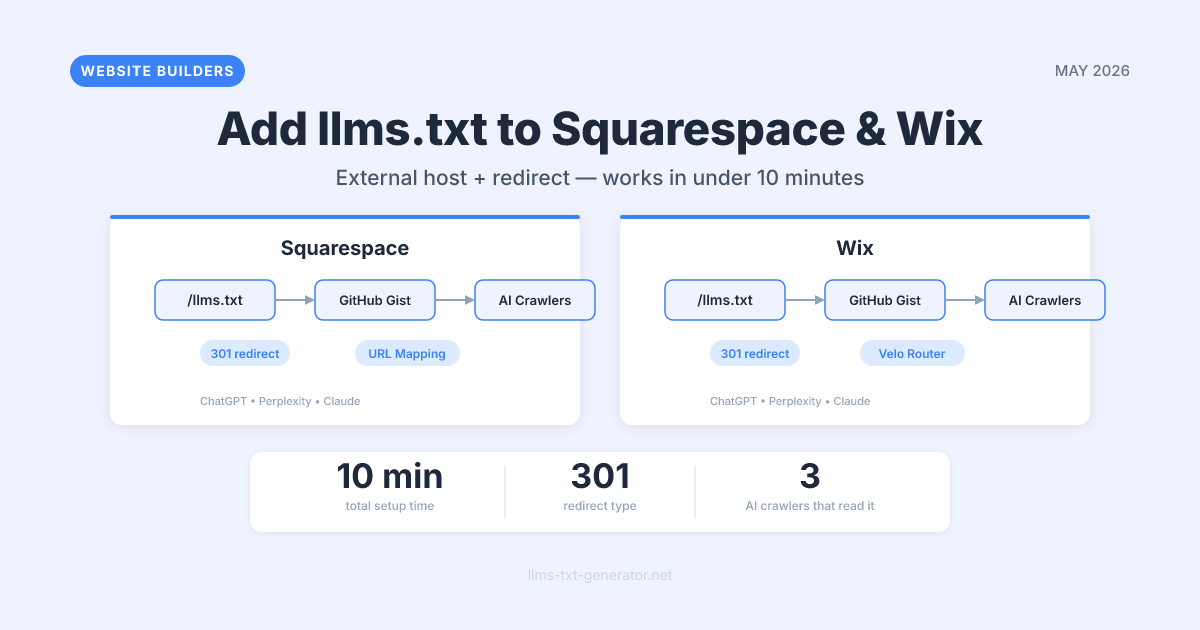
Most llms.txt tutorials assume you're on WordPress, Next.js, or a self-hosted platform where you can drop a file directly into the domain root. Squarespace and Wix users run into a different problem: both platforms lock down your domain root so you can't upload arbitrary files there.
That's the bad news. The good news: both platforms have a workaround, and neither requires developer skills. This guide covers the exact steps for Squarespace and Wix separately — so you can skip straight to the section that applies to your site.
By the end, your site will serve a properly structured llms.txt file at yourdomain.com/llms.txt, readable by AI crawlers from ChatGPT, Claude, and Perplexity. The whole process takes under 10 minutes.
Why Website Builder Users Can't Just Upload a File
On a self-hosted site, adding llms.txt is a single step: upload the file to your server's root directory and it's immediately accessible at yourdomain.com/llms.txt. Squarespace and Wix work differently. You don't have direct file-system access to the server behind your domain. Both platforms manage hosting entirely on their own infrastructure and don't expose a writable domain root to site owners.
This isn't unique to llms.txt. If you've ever tried to add a custom robots.txt override or place a verification file for Google Search Console on Squarespace or Wix, you've already hit this wall. The platform restricts what can live at the domain root — by design, to protect stability across millions of hosted sites.
The solution for both platforms is the same in principle: host the file somewhere else and redirect your domain's /llms.txt path to it. AI crawlers like GPTBot, ClaudeBot, and PerplexityBot follow 301 redirects normally, so the end result is functionally identical to serving the file natively. The details differ between Squarespace and Wix, which is why this guide covers each separately.
Method Comparison at a Glance
Here's a quick overview of the available approaches for each platform before diving into step-by-step instructions.
Platform | Method | Time Required | Technical Skill | Plan Required |
|---|---|---|---|---|
Squarespace | External host + URL Mapping redirect | ~8 min | Low | Business or Commerce |
Wix | External host + URL Redirect | ~8 min | Low | Any paid plan |
Wix (advanced) | Velo HTTP function + URL redirect | ~20 min | Medium (JavaScript) | Core or above |
For most users, the external host + redirect method is the right choice on both platforms. It's fast, requires no coding, and works reliably with AI crawlers. The Wix Velo HTTP function method is only worth the extra effort if you want to generate the file dynamically from your Wix CMS collections.
Step 0: Generate Your llms.txt File (Both Platforms)
Both methods start the same way. Before you set up any redirect, you need the actual file content. You can write it by hand, but the fastest path is to generate your free llms.txt file in about 60 seconds.
Go to the generator and enter your Squarespace or Wix site's URL.
The tool crawls your site and identifies your key pages — home, about, services, top posts.
Review the generated output and edit any section before downloading.
Click download to save the file as
llms.txt.
Once you have the file content, you need somewhere to host it at a stable public URL. GitHub Gist is the simplest free option — it requires only a free GitHub account, and the raw URL stays stable indefinitely. The instructions below use GitHub Gist. If you'd prefer another host (Cloudflare R2, AWS S3 with public access, or any web server you control), any stable public URL works.
How to Add llms.txt to Squarespace
Squarespace's URL Mappings feature lets you create 301 redirects from any path on your domain to an external URL. It's available on Business and Commerce plans.
Step 1: Host Your File on GitHub Gist
Go to gist.github.com and sign in (or create a free GitHub account).
In the filename field, type
llms.txt.Paste the full contents of your generated
llms.txtinto the text area.Click Create public gist.
On the next page, click the Raw button. Copy the URL from your browser's address bar — it will look like
https://gist.githubusercontent.com/yourusername/abc123/raw/llms.txt.
This is your file's permanent public URL. Keep it open — you'll paste it into Squarespace in the next step.
Step 2: Add a URL Mapping in Squarespace
Log in to Squarespace and open your site editor.
Go to Settings → Advanced → URL Mappings.
In the text area, add the following line (replace the Gist URL with your actual raw URL):
/llms.txt -> https://gist.githubusercontent.com/yourusername/abc123/raw/llms.txt 301
4. Click Save.
Format matters: The line must follow the exact pattern: /path -> destination-url status-code with single spaces separating each element. A typo in the format will cause the mapping to be silently ignored.
Step 3: Verify
Open a browser and navigate to https://yourdomain.com/llms.txt. You should see your plain Markdown text in the browser window. If you get a 404, double-check the URL Mapping line is formatted exactly right. If you get a download prompt instead of visible text, your Gist may have a content-type issue — confirm you're using the raw URL, not the standard gist page URL.
Plan requirement note: URL Mappings are only available on Squarespace Business, Commerce Basic, and Commerce Advanced plans. Personal plan subscribers cannot use this feature without upgrading.
How to Add llms.txt to Wix
Wix's Redirects Manager — found in the SEO settings — lets you create 301 redirects from any path to an external URL. It works on all paid Wix plans.
Step 1: Host Your File on GitHub Gist
Follow the same GitHub Gist steps from the Squarespace section above. If you've already created a Gist for the same site, you can reuse the same raw URL — the redirect points to the same file content regardless of which platform is redirecting.
Step 2: Add a Redirect in Wix
In your Wix dashboard, go to Marketing & SEO → SEO → URL Redirects.
Click + Add Redirect.
In the Old URL field, enter:
/llms.txtIn the New URL field, paste your GitHub Gist raw URL.
Confirm the redirect type is set to 301 (Permanent).
Click Add.
Step 3: Verify
Visit https://yourdomain.com/llms.txt in a browser. You should see the plain Markdown content. If Wix redirects you to the Gist page instead of the raw content, confirm you're using the raw URL (the one containing /raw/ in the path) and not the standard gist page URL.
What to Put in Your llms.txt File
The content of your file matters as much as where it lives. A well-curated llms.txt gives AI models a clean signal about your site. An exhaustive list of every page is less useful — and may cause crawlers with token limits to skip sections.
Include These
Core pages: Home, About, Services or Products, Contact
Your best content: Top 10–20 posts or pages — highest-quality and most representative of your expertise
Key resources: Portfolio, pricing, testimonials, primary landing pages
Brief descriptions for each link — one sentence explaining what the page covers
Leave These Out
Tag pages, category archives, date-based archives
Privacy policy and terms of service (unless you're a legal service)
Login pages, member-only areas, admin URLs
Thin, duplicate, or low-quality pages
A curated file with 20–30 well-chosen entries is more useful than one listing 200 pages. For a complete look at what to include and how to structure sections, see our llms.txt best practices guide. If you're new to the standard and want the background on why it exists, our complete guide to llms.txt covers it from the ground up.
Keeping Your File Current
The redirect-to-Gist approach doesn't auto-update when you publish new pages. Here's a simple maintenance plan:
Monthly update: Set a recurring reminder. Regenerate your llms.txt, then edit your GitHub Gist and paste the new content. The redirect stays the same — only the Gist content changes.
After major site changes: If you launch a new service, product line, or content section, update the file immediately rather than waiting for the monthly cycle.
GitHub Gist updates are instant: When you edit and save a Gist, the raw URL serves the updated content right away. No changes to Squarespace or Wix settings are needed.
Conclusion
Squarespace and Wix don't allow direct root file uploads — but the redirect workaround achieves the same result with under 10 minutes of setup. Generate your file, host it on GitHub Gist, and add one redirect in your platform's settings. Done.
When GPTBot, ClaudeBot, or PerplexityBot next crawls your domain, it will follow the redirect, find a clean structured description of your site, and use it to represent your content accurately in AI-powered search and answers. Generate your free llms.txt file and get it set up today.
Frequently Asked Questions
Does the redirect method actually work for AI crawlers?
Yes. AI crawlers including GPTBot (OpenAI), ClaudeBot (Anthropic), and PerplexityBot (Perplexity AI) follow 301 redirects exactly as standard web crawlers do. When a crawler requests yourdomain.com/llms.txt and receives a 301 redirect, it follows the redirect and reads the file at the destination. The redirect is transparent to the crawler.
Is GitHub Gist free to use for hosting llms.txt?
Yes. GitHub Gist is completely free for public gists, and the raw URL is stable — it doesn't expire. A standard llms.txt file is typically under 20KB, well within any practical usage threshold. You only need a free GitHub account.
Can I use a different host instead of GitHub Gist?
Yes. Any service that exposes a file at a stable, publicly accessible URL works. Options include Cloudflare R2, AWS S3 with public access, Pastebin (using the raw URL), or any web server you already control. GitHub Gist is the recommendation here because it's free, requires no infrastructure setup, and is reliably fast.
Does Squarespace's Personal plan support URL Mappings?
No. URL Mappings are only available on Squarespace Business, Commerce Basic, and Commerce Advanced plans. Personal plan subscribers would need to upgrade to add the redirect. As of May 2026, Squarespace has not announced native llms.txt support that would bypass this limitation.
Why can't Squarespace or Wix just add native llms.txt support?
It's technically straightforward — both platforms already generate robots.txt automatically. Native llms.txt support would likely look similar: a settings panel where you specify which pages to include. Whether or when either platform adds this hasn't been announced as of May 2026. The redirect approach you set up today continues to work regardless.
How is llms.txt different from robots.txt on these platforms?
Both Squarespace and Wix generate a robots.txt automatically and let you customize it through their settings. llms.txt is a new standard that neither platform generates natively — hence the workaround. Unlike robots.txt (which restricts crawler access), llms.txt proactively guides AI models toward your best content without blocking anything.
Will updating my GitHub Gist file break the redirect?
No. The redirect points to a fixed raw URL, which stays constant even when you change the file contents. Edit the Gist, save it, and the raw URL immediately serves the updated content. You never need to touch the Squarespace URL Mapping or the Wix Redirect entry again unless you want to change hosting providers.
Is the Wix Velo method better than the redirect approach?
The Velo method allows you to generate llms.txt dynamically using data from your Wix database collections (using http-functions.js). However, because Wix HTTP functions are served from the /_functions/ prefix, you still need to use the URL Redirects Manager to redirect /llms.txt to your Velo endpoint. For most sites, redirecting to a static GitHub Gist is much simpler to set up and maintain.
How do I know which AI crawlers will find my llms.txt?
The three crawlers that actively reference llms.txt are GPTBot (OpenAI), ClaudeBot (Anthropic), and PerplexityBot (Perplexity AI) — the crawlers behind ChatGPT, Claude, and Perplexity. Google's crawlers do not currently use llms.txt as of May 2026. Together, the three that do represent hundreds of millions of active AI assistant users who may encounter and cite your content.
Does this work if my Squarespace or Wix site uses a subdomain?
Yes, with a nuance. The llms.txt file should live at the root of whichever domain or subdomain represents your main site. If your site is at www.yourdomain.com, the file goes at www.yourdomain.com/llms.txt. Set up the redirect on that subdomain specifically. If you have multiple subdomains with distinct content, each would benefit from its own llms.txt entry.
Does Wix offer native support for generating llms.txt?
As of 2026, Wix does not have a native dashboard settings panel or automated generator for llms.txt. To serve this file on a Wix site, you must use the URL Redirects Manager to point /llms.txt to an externally hosted file (like a GitHub Gist) or a custom Wix Velo HTTP function.