You've built your Framer site. It looks sharp, loads fast, and now you want to add an llms.txt file so AI assistants like ChatGPT, Claude, and Perplexity can understand and cite your content. There's just one snag: Framer doesn't let you host arbitrary files at your domain's root level. Unlike Next.js or WordPress, there's no /public folder to drop a file into.
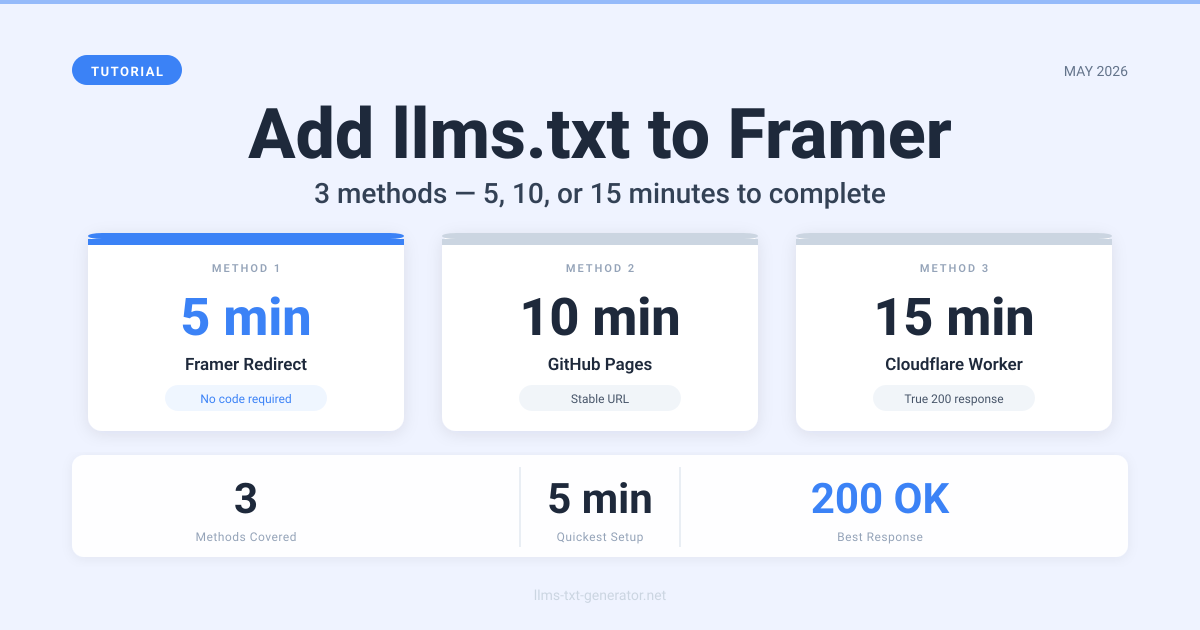
This guide covers three methods that actually work — from a no-code redirect option you can set up in five minutes, to a Cloudflare Worker approach that serves the file directly with a true 200 response. All three methods result in AI crawlers finding a valid llms.txt at yourdomain.com/llms.txt.
By the end, your Framer site will have a properly structured llms.txt file accessible to every major AI crawler. The whole setup takes under 15 minutes regardless of which method you choose.
Why Framer Sites Need llms.txt
AI assistants have become a primary channel for discovery and recommendations. When someone asks Claude or ChatGPT for suggestions in your niche, those models decide what to surface based partly on what they've crawled and understood from your site.
An llms.txt file gives AI crawlers a structured, plain-text map of your most important content — your pages, products, documentation, or portfolio work. Think of it as a sitemap built for AI models rather than traditional search engines.
Without one, AI crawlers have to guess what matters most on your site. With one, you control that signal. Sites with well-structured llms.txt files are more likely to be cited directly in AI responses — and as AI-powered search continues to grow, that signal matters more each month.
The Framer File Hosting Problem
Most web frameworks let you drop a file into a /public folder and it becomes accessible at the root of your domain. Framer doesn't work that way. Framer manages its own hosting infrastructure, and there's no direct way to place static files at the root of your site.
That leaves two fundamental approaches:
- Host the file externally and redirect requests for
/llms.txtto that URL - Intercept requests at the DNS or CDN layer before they reach Framer's servers
Both work reliably. The right choice depends on your existing setup.
Method 1: Framer Redirect to a Hosted File (5 Minutes)
This is the quickest option. You host the file content somewhere publicly accessible, then configure Framer to redirect /llms.txt requests to that URL. The majority of AI crawlers — including GPTBot, ClaudeBot, and PerplexityBot — follow 301 redirects, so this works for most use cases.
Step 1: Generate your llms.txt content.
Use the free llms.txt generator to create a structured file for your Framer site. Include your site description, your most important pages, and any key content sections.
Step 2: Host the file on GitHub.
To do this:
- Create a new GitHub repository (public or private)
- Add a file named
llms.txtto the repository root with your generated content - Commit and push to the
mainbranch - Copy the raw file URL:
https://raw.githubusercontent.com/yourusername/yourrepo/main/llms.txt
Step 3: Set up the redirect in Framer.
- Open your Framer project and go to Site Settings
- Navigate to the SEO tab, then scroll to the Redirects section
- Add a new redirect: From
/llms.txt→ To the raw GitHub URL you copied - Set the type to 301 (Permanent)
- Publish your Framer site
Within a few minutes, visiting yourdomain.com/llms.txt will redirect to your file content. AI crawlers will follow the redirect and read the plain text.
One limitation: a small number of AI crawlers may not follow redirects. If maximum compatibility matters, Method 3 below eliminates redirects entirely.
Method 2: GitHub Pages + Redirect (10 Minutes)
If you prefer the file served from a stable, readable URL rather than a raw GitHub CDN link, GitHub Pages is a clean hosting option. The Framer redirect configuration is the same as Method 1 — only the destination URL changes.
- Create a GitHub repository (name it anything, e.g.
llms-txt-hosting) - Add your
llms.txtfile to the repository root - Go to Settings → Pages in the repository
- Set the source to Deploy from a branch →
main→/(root)and save - GitHub Pages will publish your file at
https://yourusername.github.io/llms-txt-hosting/llms.txt - In Framer, add a 301 redirect from
/llms.txtto that GitHub Pages URL
The main advantage here is a single, easy-to-manage source of truth. Edit the file in GitHub and it propagates to your Framer site — no changes to the Framer project required. GitHub Pages typically reflects file changes within 2–3 minutes of a commit.
Method 3: Cloudflare Worker — No Redirect Required (15 Minutes)
If your domain is proxied through Cloudflare (common with Framer custom domains), a Cloudflare Worker can intercept requests to /llms.txt and serve your file content directly — no redirect involved. Visitors and AI crawlers receive a clean 200 OK response with the file content served at the exact path they requested.
Step 1: Create the Worker.
- Log in to your Cloudflare dashboard and go to Workers & Pages
- Click Create Application → Create Worker
- Give it a name like
serve-llms-txt - Replace the default script with the following:
export default {
  async fetch(request) {
    const url = new URL(request.url);
    if (url.pathname === '/llms.txt') {
      const content = `# Your Site Name

> Brief description of what your site covers and who it's for.

## Pages

- [Home](/): Main homepage
- [About](/about): About us
- [Blog](/blog): All articles

## Portfolio

- [Case Study: Project Name](/work/project): Description of the project
`;
      return new Response(content, {
        headers: { 'Content-Type': 'text/plain; charset=utf-8' }
      });
    }
    return fetch(request);
  }
};
Step 2: Add a route to your domain.
- In the Worker's Settings tab, go to Triggers
- Under Routes, click Add Route
- Enter
yourdomain.com/llms.txtand select your Cloudflare zone - Click Save and then Deploy the Worker
The Worker intercepts requests to /llms.txt before they reach Framer's servers and returns the file content directly. All other traffic passes through to Framer normally. This approach works with all AI crawlers, including those that do not follow redirects.
Comparing All Three Methods
| Method | HTTP Response | Setup Time | Requires Cloudflare? | Best For |
|---|---|---|---|---|
| 1. Framer Redirect (GitHub raw) | 301 → 200 | 5 min | No | Fastest setup, works for most crawlers |
| 2. GitHub Pages + Redirect | 301 → 200 | 10 min | No | Stable URL, easy file updates |
| 3. Cloudflare Worker | 200 (direct) | 15 min | Yes | Maximum compatibility, no redirect |
For most Framer sites, Method 1 is the right place to start. If you're already on Cloudflare and want the cleanest implementation, Method 3 is worth the extra ten minutes.
What to Put in Your llms.txt File
The content of your llms.txt matters as much as how it's hosted. A well-structured file should include:
- A site name as a markdown H1 header
- A brief blockquote description (1–3 sentences about what your site covers and who it serves)
- Links to your most important pages with descriptive anchor text
- Organized sections for different content types (blog posts, portfolio pieces, product pages)
- Optional: a link to an extended version at
/llms-full.txtwith full page content
For the complete formatting spec and what AI crawlers prioritize, see the llms.txt best practices guide. For Framer portfolio sites in particular, focus on your case studies and project descriptions — those are the pages AI models are most likely to reference when citing your work.
To generate a properly formatted file in seconds, use the free llms.txt generator — enter your site details and export the ready-to-use plain text, then paste it into GitHub or your Cloudflare Worker.
Verify Your llms.txt Is Working
After setting up any of the three methods, confirm it's functioning correctly:
- Visit
https://yourdomain.com/llms.txtin your browser — you should see plain text content, or be redirected to it - Run
curl -I https://yourdomain.com/llms.txtin your terminal — look for a200 OKor a301that resolves to a200 - Check Cloudflare analytics or your server logs for AI crawler traffic — look for user agents containing
GPTBot,ClaudeBot, andPerplexityBot
For a thorough walkthrough of verifying AI crawler access — including log patterns and timing expectations — see the full verification guide.
Conclusion
Framer's lack of native file hosting is a friction point, but none of the three methods here require more than 15 minutes to implement. The redirect approach works for most Framer sites with no infrastructure beyond a GitHub account. The Cloudflare Worker is the cleanest technical solution if you're already on Cloudflare.
Start by generating your llms.txt file for free, then pick the method that fits your existing stack and get it live today.
Frequently Asked Questions
Does Framer have a built-in way to add llms.txt?
No. Framer doesn't support hosting arbitrary files at your domain's root level. You need to use one of the three external methods covered in this guide: a Framer redirect to a hosted file, GitHub Pages with a redirect, or a Cloudflare Worker that intercepts requests before they reach Framer's servers.
Will a 301 redirect work for AI crawlers reading llms.txt?
Yes, for the majority of AI crawlers. GPTBot, ClaudeBot, and PerplexityBot all follow 301 redirects and read the content at the destination URL. A small subset of AI systems may not follow redirects — in that case, the Cloudflare Worker method (Method 3) is the more reliable choice.
Can I use Vercel or Netlify to host the file instead of GitHub?
Yes. Any publicly accessible URL that returns plain text with Content-Type: text/plain will work. GitHub Pages and raw GitHub URLs are simply the most widely available zero-cost options. Vercel, Netlify, Cloudflare R2, or any CDN are equally valid hosting choices.
How do I update my llms.txt after the initial setup?
With the GitHub or GitHub Pages method, edit the file in your repository and commit — changes go live within minutes with no Framer project changes needed. With the Cloudflare Worker method, edit the Worker script in the Cloudflare dashboard and redeploy. Both approaches decouple your llms.txt content entirely from your Framer publishing workflow.
Does this work on Framer's free subdomain, or only with a custom domain?
The GitHub redirect methods work on both Framer's free subdomain (e.g., yoursite.framer.app) and custom domains — you simply redirect the Framer subdomain to the hosted file URL. The Cloudflare Worker method requires a custom domain proxied through Cloudflare.
What's the difference between robots.txt and llms.txt for Framer sites?
Framer supports robots.txt natively through its SEO settings — that file controls which pages traditional search engine crawlers can index. The llms.txt standard is separate and newer, designed specifically for AI language models. Framer's built-in robots.txt editor cannot serve an llms.txt file; you need one of the methods in this guide for that.
How long before AI crawlers discover my llms.txt?
There's no fixed schedule. Some AI systems crawl proactively on rolling schedules; others crawl on demand when users ask about your site. Most sites see evidence of AI crawler visits within 2–4 weeks of publishing a valid llms.txt file. You can monitor this through Cloudflare analytics or server access logs.
Should I add llms.txt to all my Framer sites?
Yes, each domain should have its own llms.txt with content specific to that site. You can reuse the same GitHub repository structure or Cloudflare Worker template across multiple Framer projects, but the file content should accurately describe each domain's pages and purpose separately.
What happens if I don't add llms.txt to my Framer site?
AI crawlers will still visit your site and parse your HTML. Without an llms.txt, they have to infer what's most important from page structure and link relationships. A well-formed llms.txt gives you explicit control over that signal — which is the difference between being cited accurately in AI responses and being guessed at.